General Plugin Guide
The plugin framework is currently an experimental feature and is subject to change. We are working on improving both the technology and the way you use it. We will provide more documentation and examples as we progress.
The plugin framework is supported in DHIS2 version 40.5 and later. Dashboard app support was introduced in Dashboard v101.0.0.
Introduction
Plugins let you extend DHIS2 apps with custom UI and logic that a host app loads and renders at specific extension points. DHIS2 core apps (like Capture and Dashboard) provide predefined extension points, and custom DHIS2 apps can also host plugins using the App Runtime Plugin component.
A plugin is packaged as a DHIS2 app, but instead of rendering its own app shell it exports one or more React components. The host app (Capture, Dashboard, or your own DHIS2 app) loads and mounts those components at specific extension points.
Across plugin types, the fundamentals are the same:
- React-based, built with the DHIS2 App Platform tooling
- Loaded and rendered by a host app (Capture, Dashboard, or a custom app)
- Driven by props
- No routing, navigation, or global app state
These are the currently documented plugin types for DHIS2 core apps. You can also build plugins for custom DHIS2 apps by hosting them with the App Runtime Plugin component:
- Form Field Plugins, which extend Capture data entry forms (for example by auto-generating values or validating input). A complete reference implementation is available on GitHub.
- Enrollment Plugins, which add custom views or dashboards on tracker enrollment pages. See the official WHO Growth Chart Plugin on the App Hub for an example.
- Bulk Data Entry Plugins, which enable bulk operations in Capture (for example updating data across multiple tracked entities).
- Dashboard Plugins embed custom visualizations or controls in the Dashboard app.
All plugins are built as DHIS2 App Platform apps with a plugin entry point configured in d2.config.js. They receive context through props from the host app (see Consuming plugin props below).
What is a plugin?
At runtime, a plugin is just a React component. The host app decides:
- When the plugin is rendered
- Where it is rendered
- Which props are passed to it
The plugin itself is responsible only for rendering UI and reacting to prop changes. It should not make assumptions about routing, user navigation, or surrounding layout.
Under the hood, a host app can use the App Runtime Plugin component (from @dhis2/app-runtime/experimental) to load a plugin in an iframe and pass props to it (including callbacks for two-way communication).
This means plugins are not limited to DHIS2 core apps: any DHIS2 app can act as a host as long as it renders the Plugin component. The plugin must be built with the App Platform and have entryPoints.plugin configured in d2.config.js.
You do not manually instantiate plugins in code. Instead, you:
- Build a plugin as a DHIS2 app
- Install it into a DHIS2 instance like any other app
- Configure the host app to use it (for example in the Tracker Plugin Configurator for Capture plugins, or as a dashboard item for Dashboard plugins)
Common structure of a plugin project
All plugin types share the same basic app structure.
my-plugin/
├─ src/
│  ├─ Plugin.(js|tsx)   # The exported plugin component
│  ├─ App.(js|tsx)      # (Optional) local wrapper for development
│  └─ index.js
├─ public/
├─ d2.config.js
├─ package.json
Plugin.*exports the plugin component that the host app loads.App.*is optional, but convenient for local development (it can render your plugin with mocked props).- The
pluginentry point is configured ind2.config.js.
Developing a Plugin
When developing a plugin, most of the tooling and patterns are the same as for a regular DHIS2 app. The key difference is that a plugin is embedded inside another app and communicates with it using props.
This section walks through scaffolding, configuration, a minimal example, and what to expect from props.
For a complete example with additional context and implementation details, see the Reference Form Field Plugin.
1. Scaffold a Plugin Project
Use the DHIS2 CLI to bootstrap your plugin project:
yarn global add @dhis2/cli
d2 app scripts init my-plugin
cd my-plugin
Pick app as the app type. If you only need a plugin, you can remove the default app entry point later.
2. Configure Your Plugin
In your d2.config.js, define the plugin entry point and type:
const config = {
    name: 'my-plugin',
    type: 'app',
    pluginType: 'CAPTURE', // or 'DASHBOARD'
    entryPoints: {
        plugin: './src/Plugin.tsx',
    },
}

module.exports = config
Use pluginType: 'CAPTURE' for Capture plugins and pluginType: 'DASHBOARD' for Dashboard plugins.
3. Implement the Plugin Component
The plugin component is a React function that receives props from the host app. The exact props differ between plugin types, but the pattern is consistent:
- read context from props
- render UI
- call host-provided setters/callbacks in response to user actions
In most plugins you’ll do two things:
- render based on incoming props
- call host callbacks when you want to update something
The example below illustrates a very simple props/callback loop.
This example is intentionally minimal (but functional). It uses plain HTML elements and does not leverage the DHIS2 UI library.
For a more complete example (including DHIS2 UI components, i18n patterns, and additional safeguards), see the Reference Form Field Plugin.
// src/Plugin.tsx
import React from 'react'

const generateCustomId = () => {
    return `CUST-${Date.now()}`
}

export default function Plugin({ values, setFieldValue }) {
    const value = values?.id ?? ''

    const handleGenerate = () => {
        setFieldValue({ fieldId: 'id', value: generateCustomId() })
    }

    return (
        <div>
            <input value={value} readOnly placeholder="Generate ID" />
            <button type="button" onClick={handleGenerate}>
                Generate ID
            </button>
        </div>
    )
}
This plugin reads the current value from values and updates the form by calling setFieldValue.
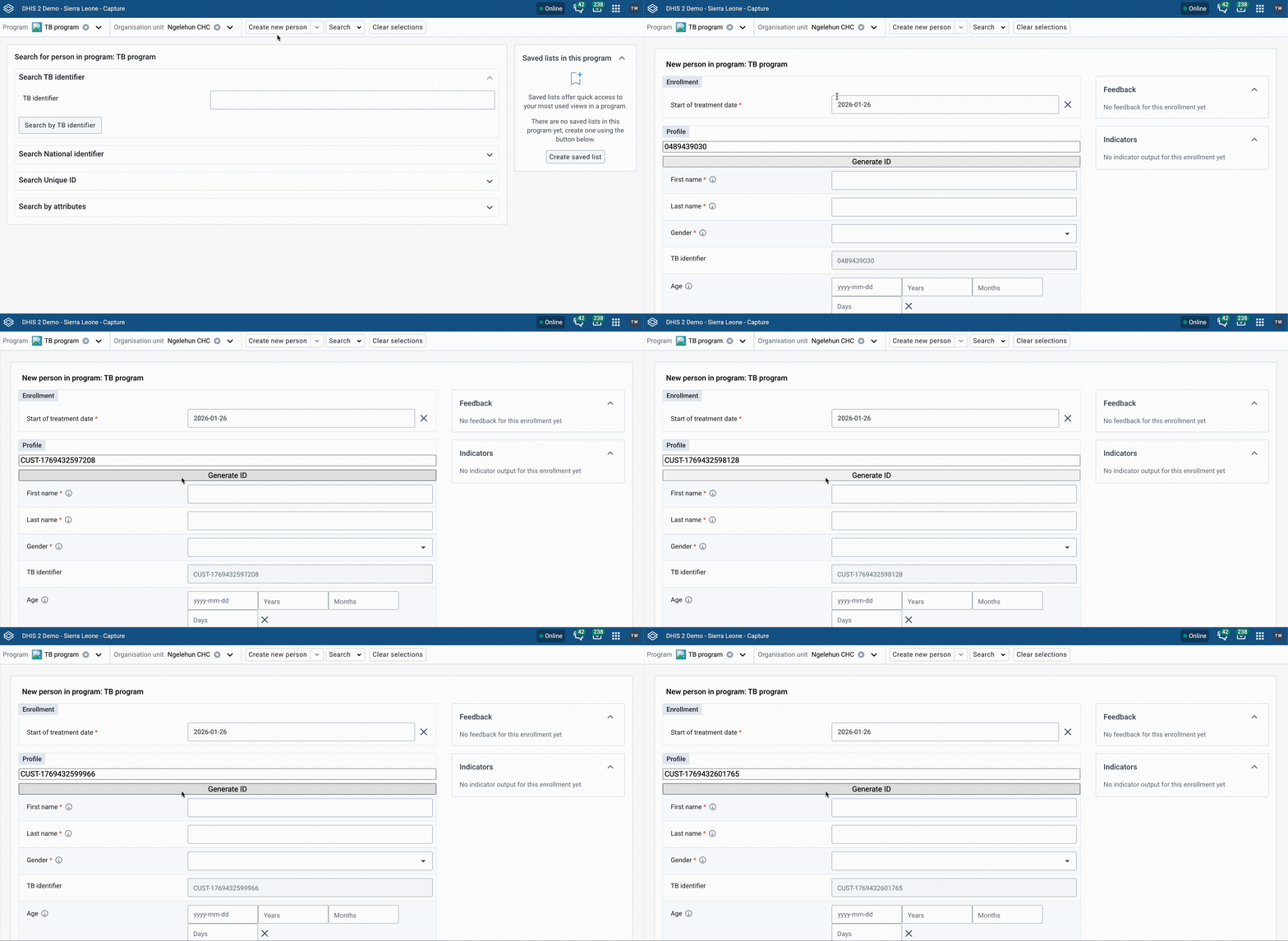
Example: clicking "Generate ID" updates the mapped Capture form field via setFieldValue.
If you are building a Capture form field plugin, make sure the fieldId passed to setFieldValue matches your mapped field alias in the Tracker Plugin Configurator.
4. Consuming Plugin Props
Plugins receive props from the host app to provide context and control interactions.
Treat props as the contract with the host app. Use them as the source of truth, and keep local state to a minimum.
Most plugin integrations follow the same model:
- Input props from the host app provide context (for example, values, mode, filters, metadata).
- Callback props let the plugin request updates in the host app.
- Lifecycle props may be provided for workflow-style plugins.
Prop names and behavior differ by plugin type. Use the type-specific guides for the full contract:
- Capture plugins (form field / enrollment): Developer details
- Bulk Data Entry plugins: Developer details
- Dashboard plugins: Using Dashboard props
Developer workflow (recommended)
A common workflow that applies to all plugin types:
- Develop locally with
yarn start(optionally using anappentry point as a wrapper). - Use mocked props in your wrapper so you can iterate quickly.
- Build a ZIP with
yarn build. - Install the ZIP into a DHIS2 instance and test in the host app (Capture/Dashboard).
- Complete host-specific configuration and validation based on plugin type.
Plugins can only interact with fields they have been granted access to through configuration. Attempting to access other fields will result in errors.
1. Local Development
To run the plugin locally and preview it in the browser:
yarn start
By default, the app will be available at http://localhost:3000.
2. Build and Deploy
Use the following command to build a production bundle:
yarn build
The resulting ZIP in build/ can be uploaded via the App Management app or deployed through the App CLI. Plugins can also be published to the DHIS2 App Hub.
Deploying a Capture Plugin
Use the Tracker Plugin Configurator to assign your plugin to a form and map field IDs.
Deploying a Dashboard Plugin
Once installed, your plugin will appear under "Apps" when adding items to a dashboard.
For more detailed plugin usage and patterns, see the reference form field plugin and civil registry example.
Where to go next
This guide covered the shared concepts behind all DHIS2 plugins. For more information, dive into the plugin-type-specific documentation:
- Capture plugins: Getting started
- Bulk Data Entry plugins: Introduction
- Form field plugins: Introduction
- Enrollment plugins: Introduction
- Dashboard plugins: Getting started
Related reference:
- App Runtime: Plugin component